
Manual
Running a Clinic Visit on WebPlatform: From Booking to Signed Prescription
Most clinics already take bookings online. The harder part starts when the patient walks in: the BP reading is written on a slip, the old reports arrive in a plastic folder, and the doctor types the prescription without either in front of them. WebPlatform's Clinic Workspace now keeps the whole visit in one place, from the confirmed booking to the signed prescription and the follow-up reminder.
This post walks through a visit step by step, with screenshots from the Clinic Workspace. The patient shown is a sample, not a real person.
The visit at a glance
- Booking: the patient books on the clinic website, or reception adds the appointment. It arrives as Pending.
- Confirm: reception confirms it and the patient receives a WhatsApp message and an email.
- Queue and check-in: reception adds the booking to today's queue with the doctor, then checks the patient in when they arrive.
- Vitals: a nurse or reception records BP, pulse, temperature, SpO₂, weight, height and blood sugar.
- Old records: reception uploads photos or PDFs of earlier prescriptions and reports the patient brought.
- Consultation: the doctor starts the consultation, reviews everything on one screen and writes the notes.
- Prescription: the doctor writes and signs the prescription for that visit. The PDF carries the vitals, diagnosis and a QR code anyone can use to check it.
- Complete: the doctor completes the visit. The booking is marked completed and a follow-up date becomes a follow-up.
- Follow-up: the clinic is reminded before the follow-up is due, and the patient can see the signed prescription in their account on the clinic website.
Reception: queue, check-in and vitals
Only confirmed bookings reach the clinic queue, and each booking can be queued once, so the same patient never appears twice. When the patient arrives, reception presses Check in.
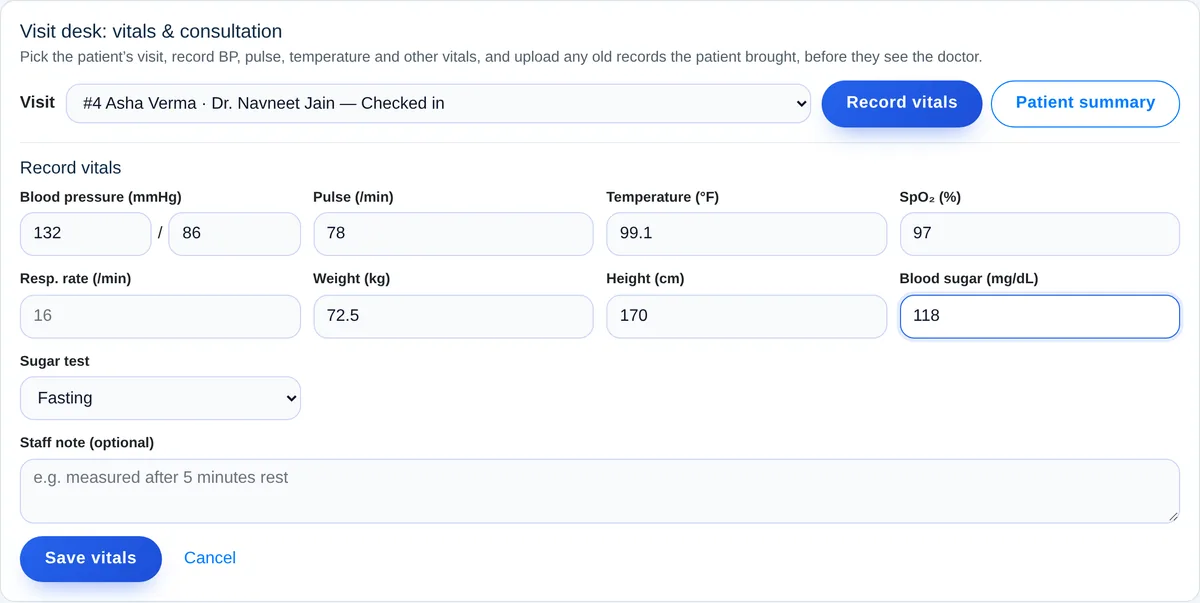
The Visit desk at the top of the Clinic Workspace lists today's visits. Staff pick the patient, press Record vitals and type the readings. Only the two BP numbers are needed together; every other reading is optional. Temperature is in °F, BMI is worked out from weight and height, and staff can record again later in the visit.
Old reports, without the plastic folder
Patients often bring earlier prescriptions, lab reports and X-ray or scan reports. Under Old records & scans, reception chooses the record type, adds a title and date if known, and uploads the files. On a phone, staff can simply take a photo of the paper report. Up to 10 files can go up at once, PDF or photo, 10 MB each.

These files are private. They are never published at a public web address. Reception can see that a record was uploaded, but only the clinic's verified doctors and the clinic owner can open it, and every upload is logged.
The doctor's screen
Each doctor signs in with their own login. After pressing Start consultation in the queue, the doctor opens Patient summary & notes for the visit and sees, on one screen:
- age, gender and contact details;
- today's vitals and the readings from earlier visits;
- the old records uploaded for the patient, which open with one click;
- recent prescriptions and earlier consultation notes;
- the notes form for this visit: complaint, history, examination findings, diagnosis and plan.
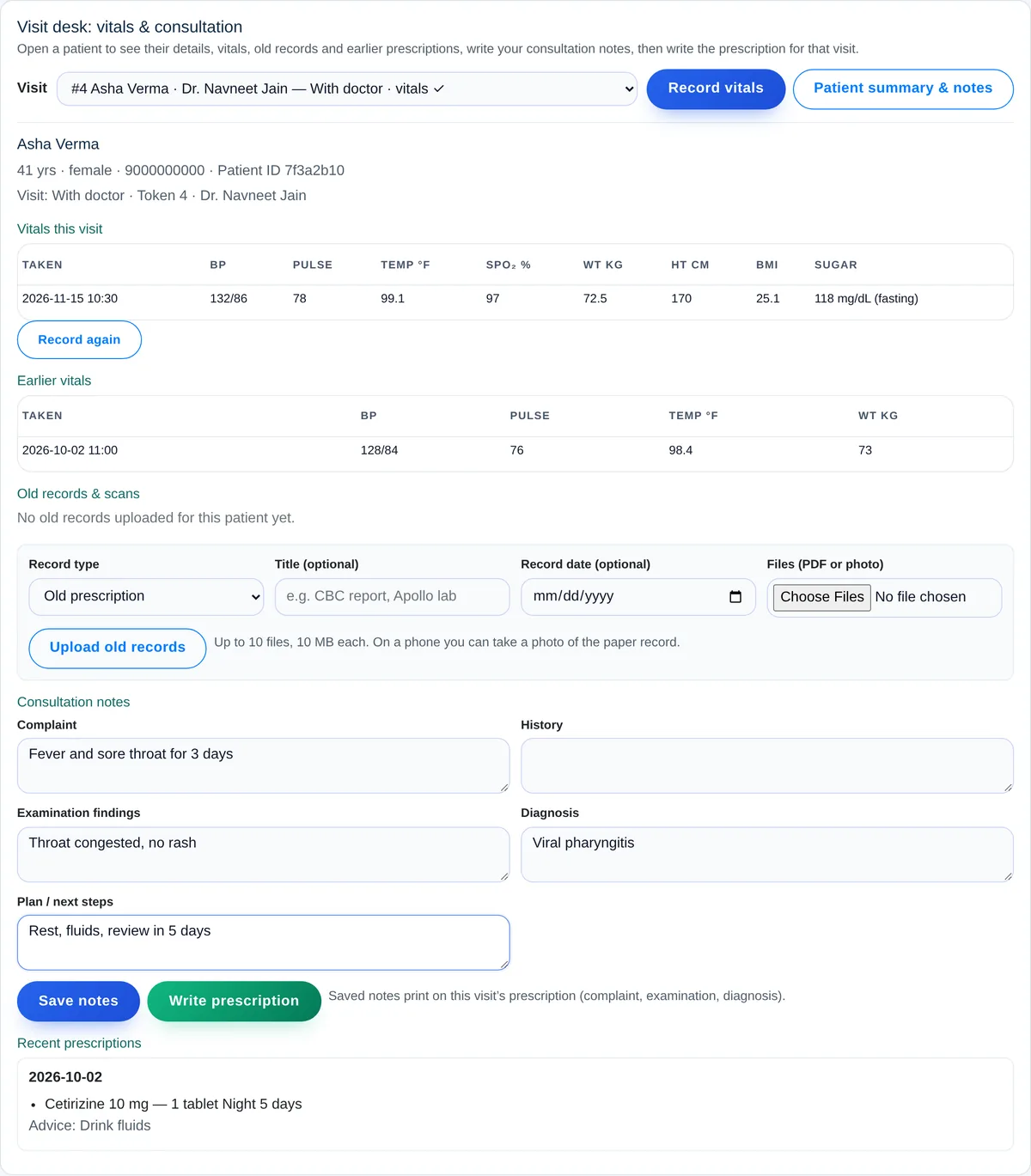
Consultation notes are visible only to the clinic's doctors. Reception and nursing staff do not see them.
Writing and signing the prescription
After saving the notes, the doctor presses Write prescription. The form opens with the visit already chosen and the patient filled in, so there is nothing to search for. A doctor who starts from the Prescriptions list picks the patient from Visit (from the queue), which lists their own checked-in patients.
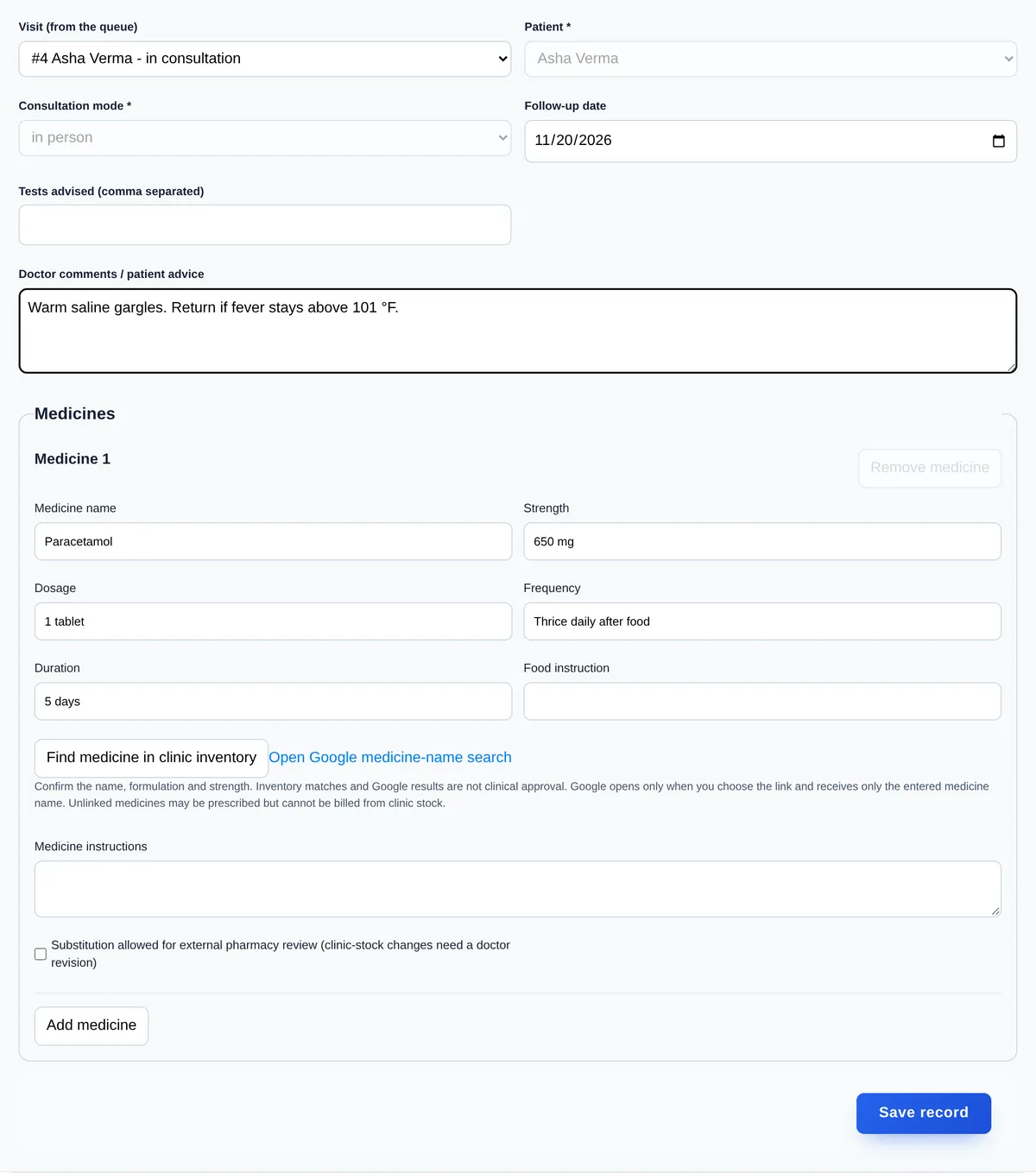
The doctor adds medicines (with a search of the clinic's own pharmacy stock), advice, tests and a follow-up date, saves, and signs. Signing locks the prescription. The printed PDF shows the clinic's details, the vitals, the complaint, examination and diagnosis above the medicines, and a QR code that leads to a page confirming the prescription is genuine. The doctor can revoke a signed prescription if needed, and every change is recorded.
Finishing the visit
The queue only offers the next sensible step: Start consultation for a checked-in patient, then Complete visit. Only the doctor assigned to the visit can start or complete it.

Completing the visit also marks the original booking as completed, so the appointments list matches the clinic day. A follow-up date on the signed prescription becomes a follow-up in the clinic's list, and the clinic is reminded as it comes due. Patients who are linked to their account on the clinic website can see their signed prescriptions and download the PDF there.
Setting it up for your clinic
- Give each doctor their own login and register them under Practitioners with their registration number and council.
- Verify each doctor. Verification records the electronic signature that signing a prescription needs.
- Give reception and nursing staff their own logins. They can add patients, check them in, record vitals and upload records.
- Add your clinic's printing details so the name, address and registration appear on every prescription.
- Run one test visit from booking to completion before the first real patient.
Questions clinics ask
Can reception see the doctor's notes?
No. Staff logins see the patient's details, vitals and the list of uploaded records. Consultation notes, earlier prescriptions and the record files are for the clinic's doctors and the owner.
We have more than one doctor. Who sees which patients?
Each doctor sees their own visits in the Visit desk, and only the assigned doctor can write notes and sign the prescription for a visit.
Do we have to use online booking?
No. Reception can add appointments by hand for walk-ins and phone bookings, and they follow the same flow.
Read how WebPlatform handles online booking for one-doctor clinics, compare WebPlatform packages, or contact WebPlatform to set up the Clinic Workspace for your clinic.