
Manual
Online Booking for One-Doctor Clinics, Without Double Bookings
Most clinics with one consulting doctor offer several services: a first consultation, a follow-up, a procedure review, a report discussion. On paper the services are different. In the diary they all need the same person. When online booking treats each service as its own calendar, two patients can book the same 6:00 PM time for two different services, and the front desk finds out only when both arrive.
WebPlatform's appointment module now handles this directly. A clinic chooses One practitioner, and every time can be booked once, whichever service the patient picks. This post explains how it works, using the setup we first built with Tirthankar Mahavir Cancer Clinic (TMCC).
What the patient sees
The patient chooses a date, the service they need and an open time. Only real, bookable times appear, and the list never repeats the same time. If the doctor is already booked at 6:00 PM for any service, 6:00 PM is gone for every service.
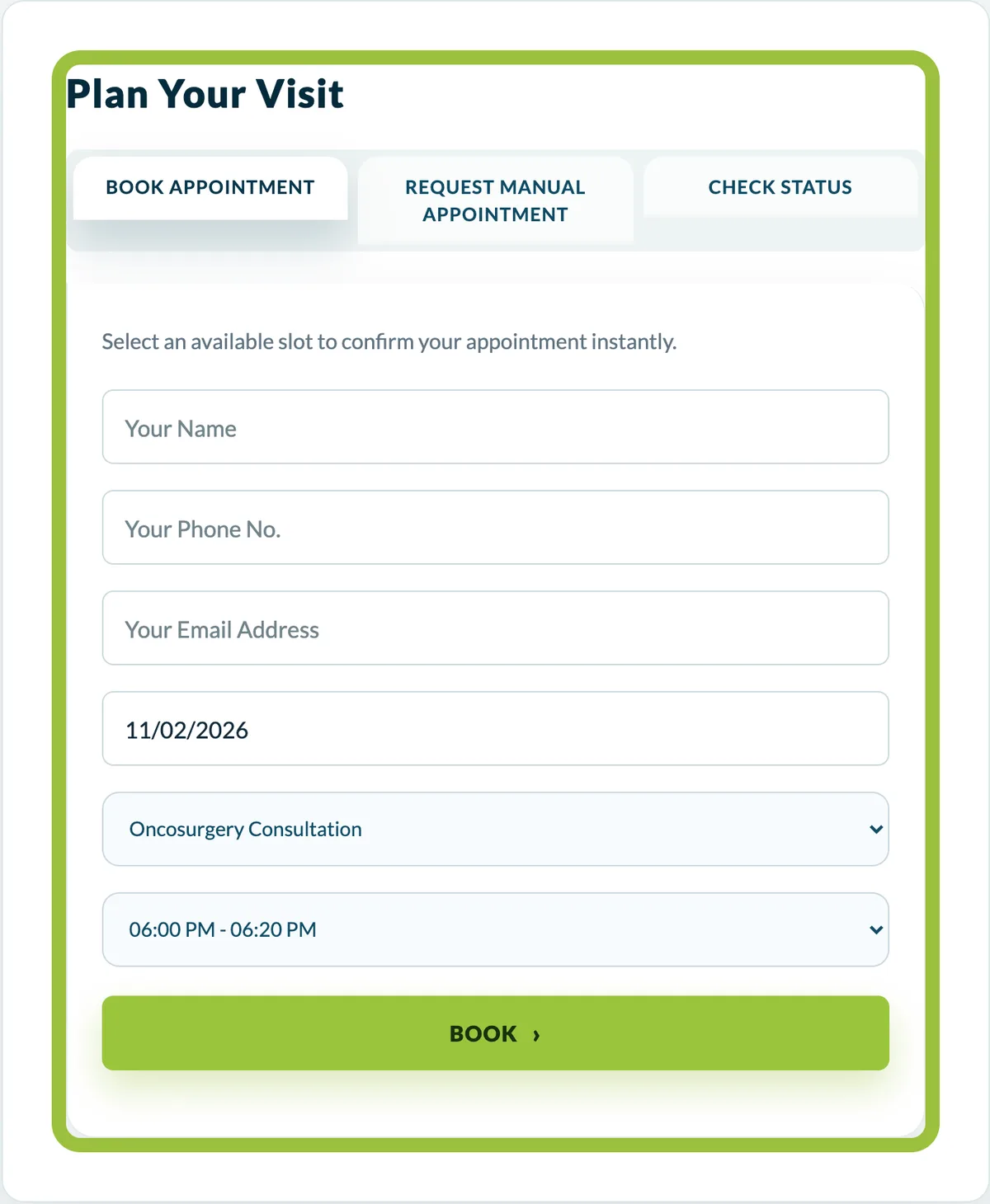
The same page offers two more paths, so nobody is turned away:
- Request manual appointment: when no listed time suits the patient, they ask for a preferred date and time and the clinic confirms it. Past dates are not accepted.
- Check status: a patient who has already asked can look up their request with the phone number or email they used.
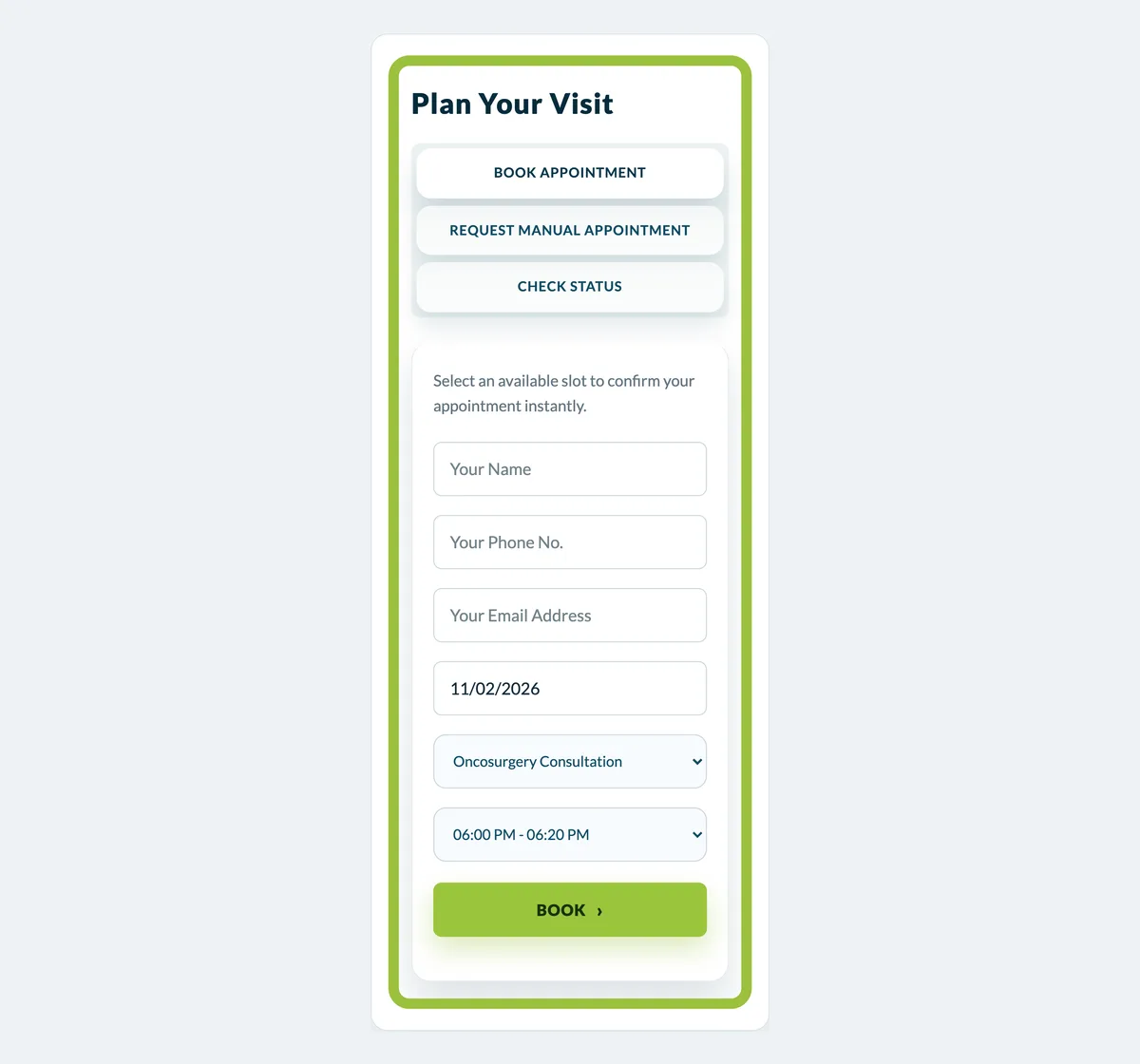
The form is built for phones first, because that is where most patients book.
What the clinic switches on
In Appointments → Scheduling Inventory, the owner chooses how patients book. One practitioner gives the clinic a single shared calendar. Each service has its own capacity suits businesses where different staff deliver different services at the same time, such as a salon or a multi-doctor practice.
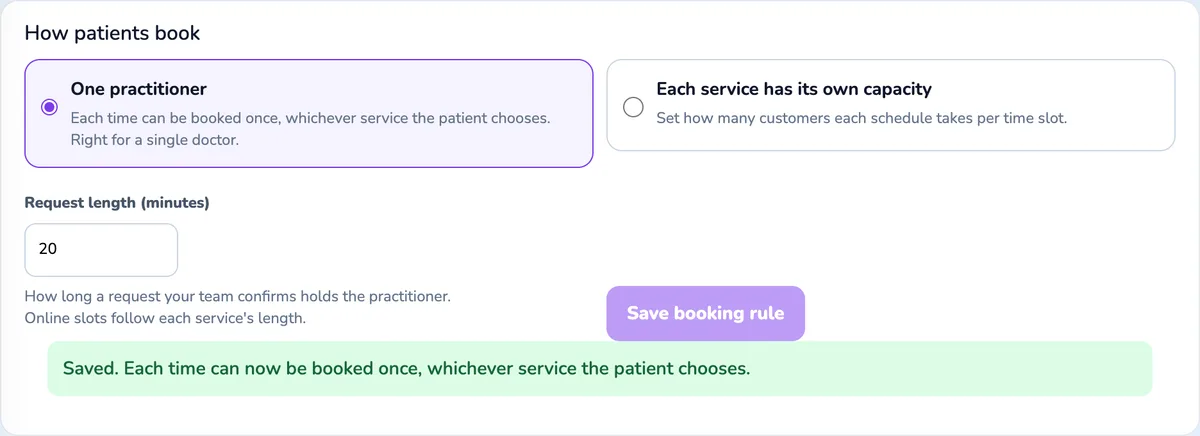
The request length tells WebPlatform how long a manual request holds the doctor once the team confirms it. Online bookings follow each service's own length. Only the business owner can change this setting; front-desk staff cannot.
One view of the day for the front desk
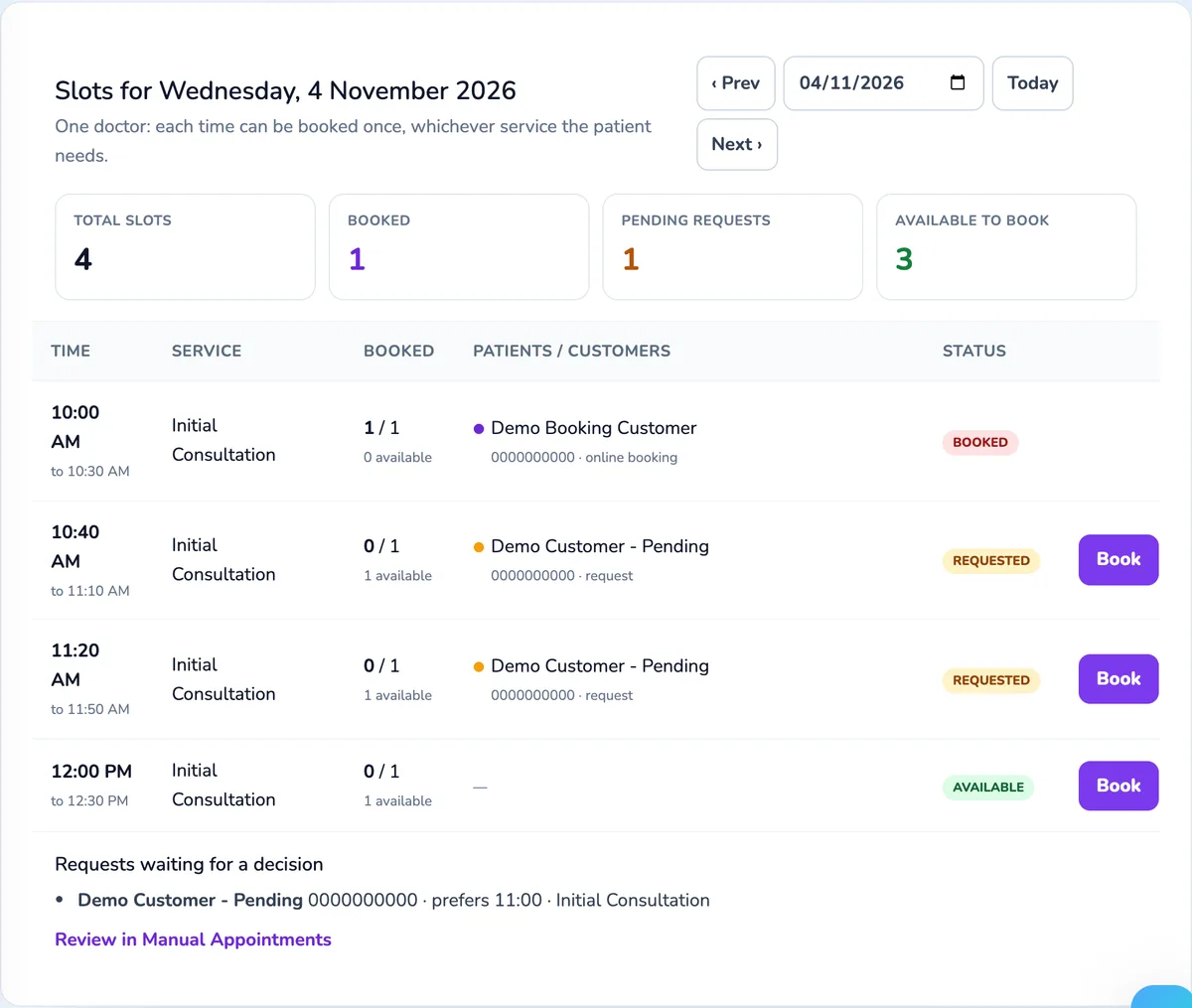
With one practitioner, the day view shows one row per time instead of one row per service. Staff see what is booked, what is waiting for a decision and what is still open, and can book a walk-in from the same screen. The checks are the same everywhere: a time taken on the website cannot be booked again from the desk, and a confirmed manual request blocks that time online.
Setting up a new clinic
- Create the services the doctor offers, each with its appointment length and price.
- Add working hours for the days the clinic is open. Each service gets the same daily window, so every service offers the same times.
- Choose One practitioner in Scheduling Inventory.
- Turn on the security check for the request form so automated spam does not reach your team.
- Test one booking on your own phone before sharing the link with patients.
For clinics that want their full schedule loaded at once, the WebPlatform team can set up the services and dated working hours for you. The setup runs as a preview first, keeps a backup, and stops rather than overwriting hours or bookings that already exist.
Questions clinics ask
Can patients still book different services?
Yes. Patients choose any service. The doctor's time is what is shared, not the service list.
What happens to a time when a booking is cancelled?
Cancelled and refunded bookings release the time straight away, and it appears again for every service.
We have two doctors. Is this for us?
Keep Each service has its own capacity, give each doctor their own working hours, and set how many patients each schedule takes per time slot.
See the full TMCC case study, compare WebPlatform packages, or contact WebPlatform to set up online booking for your clinic.